

acme.com and will be used automatically by any API checks
targeting that domain. You can optionally restrict a certificate to a URL path, so that different routes on the same host
use different certificates.
Client certificates are available on the Enterprise plan only.
Adding a certificate
Go to the Client Certificates tab on the Account settings screen.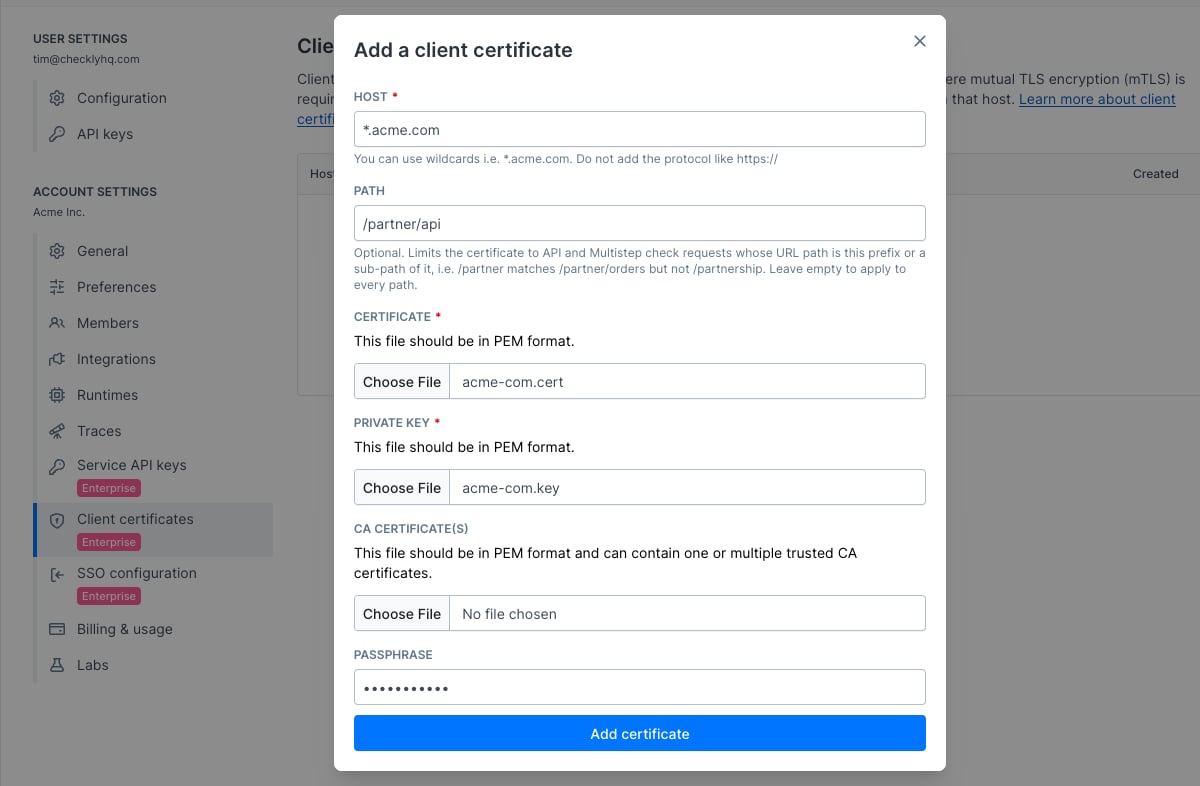
- Click “Add client certificate”.
- Provide the host name for the certificate. You can use wildcard like
*.acme.com. Under the hood we use minimatch - Optionally provide a path to restrict the certificate to one route of that host, e.g.
/partner/api. See Restricting a certificate to a path. - Select the certificate file and private key file. Both need to be in
PEMformat. - If your client certificate requires a custom Certificate Authority, you can add another
PEMfile that contains one or more concatenated CA certificates. - If you provided a passphrase when generating your certificate and private key files, provide it in the passphrase input. You can leave it empty if no passphrase is needed.
Note that your passphrase will be encrypted at rest, in transit and only used at very end when executing your API check.
Using a certificate
Client certificates are automatically used by API checks and Multistep checks whose request matches the host name of the certificate. Client certificates are active account wide and cannot be limited to a specific group. You can add multiple certificates for the same host. In this case we match the certificate by the following rules, in order:- A certificate whose path matches the request URL wins over one without a path. If several path-scoped certificates match, the longest path wins.
- A certificate with a full hostname wins over one that matches on a wildcard, e.g.
www.acme.comwins from*.acme.comfor the hostwww.acme.com. - The most recently added certificate wins.
Restricting a certificate to a path
A certificate with a path is only used for requests whose URL path is that path or lies under it, on whole path segments: a certificate for/partner applies to /partner and /partner/orders, but not to /partnership.
- The path must start with
/, must not be just/, and may not contain a query string, a fragment, whitespace, empty segments (//) or./..segments. A trailing/is dropped when the certificate is saved. - The path is compared against the check’s request URL after environment variables have been rendered. A URL rewritten in a setup script is not re-matched (see Known limitations).
- Only API checks and Multistep checks match on path. gRPC, SSL and TCP monitors have no request path and never use a path-scoped certificate; give those hosts a certificate without a path.
- Multistep checks running on a private location need a Checkly Agent version with path support (see the agent change log). Older agents ignore the path and select the certificate by the host-only rules above: exact host over wildcard, then the most recently added.
Editing a certificate
Client certificates cannot be edited. You can only remove or add client certificates.Removing a certificate
You can remove a certificate by going to Client Certificates tab and clicking the delete icon. Note that any API checks that require a client certificate will start failing.Known limitations
-
Because we need to match your certificate to your target endpoint for your API checks, you cannot change the
request.urlin a setup script as described here. -
We do not support
PKCS12certificate bundles. You can convert yourPKCS12bundles toPEMformat usingopenssl